Showing posts with label VS2005. Show all posts

3.9.07

Code Snippets in Visual Studio 2005

Code snippet files are XML-files with "*.snippet" -extension. These files reside under C:\Program Files\Microsoft Visual Studio 8\VC#\Snippets\1033 for C# (for VB just replace VC# with VB).

There are two type of snippets; insert and surround with. Insert, as the name says, inserts desired code in the cursor location. In order to use Surround with, the appropriate code-section must be chosen. It surrounds the selected code with brackets, i.e. try{..} catch{Exception}.

There are two main ways to add a snippet in the code;
- From the menu "Edit - Intellisence - Insert Snippet" or with shortcut keys Ctrl + K (visual studio waits for second key combination) Ctrl + X
- From the menu "Edit - Intellisence - Surround with" or with shortcut keys Ctrl + K (visual studio waits for second key combination) Ctrl + S

For more snippets check this site.

13.8.07

Debugging Windows Services in C# and .NET with Visual Studio 2005

You cannot debug or run a service application by pressing F5 or F11; you cannot immediately run a service or step into its code. Instead, you must install and start your service, and then attach a debugger to the service's process as follows;
  1. Install your service and start the service.


  2. Open the project in Visual Studio 2005.


  3. Place your breakpoints at appropriate places in your code.


  4. Choose "Attach to process" from the Debug menu.


  5. From the available processes, look for the process created by your service. The process name will be same as the executable file of the service. (If not, choose both options "Show processes from all users" and "Show processes in all sessions")


  6. After clicking on "Attach" you should be able to debug your service application.


10.8.07

Debugging Oracle PL/SQL from Visual Studio 2005

The new, integrated PL/SQL debugger in ODT 10.2.0.2 allows you to remain inside of Visual Studio for end-to-end debugging of your .NET and Oracle solution. You can now debug PL/SQL code such as procedures and functions (both stand-alone and packaged), object methods, and triggers from within the Visual Studio environment in the same way as you would debug your C# or VB.NET code. With the ODT integrated PL/SQL debugger, you can use traditional debugging features such as setting break points, viewing and modifying variable values, and examining the call stack.
Check this site for more information and step-by-step tutorial.

Keyboard Shortcuts for Visual Studio 2005


Have ever wanted to go to the "Last position" in your huge code just like you do in Visual Basic 6 editor?

Just click CTRL + MINUS SIGN for backward navigation, and

click CTRL + SHIFT + MINUS SIGN for forward navigation.

For the whole list of keyboard shortcuts refer to Visual C# 2005 Keyboard Shortcut Reference Poster


15.6.06

GhostDOC for .NET

GhostDoc is a free add-in for Visual Studio that automatically generates XML documentation from appropriate comments. Either by using existing documentation inherited from base classes or implemented interfaces, or by deducing comments from name and type of e.g. methods, properties or parameters.

http://submain.com/products/ghostdoc.aspx

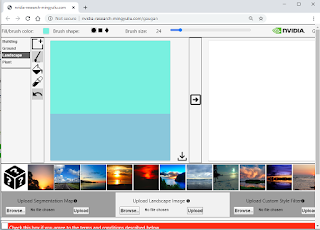
Nvidia's GauGan App

NVIDIA's GauGAN AI Machine Learning Tool creates photorealistic images from Simple Hand Doodling http://nvidia-research-mingyuliu.com/...